How to Start
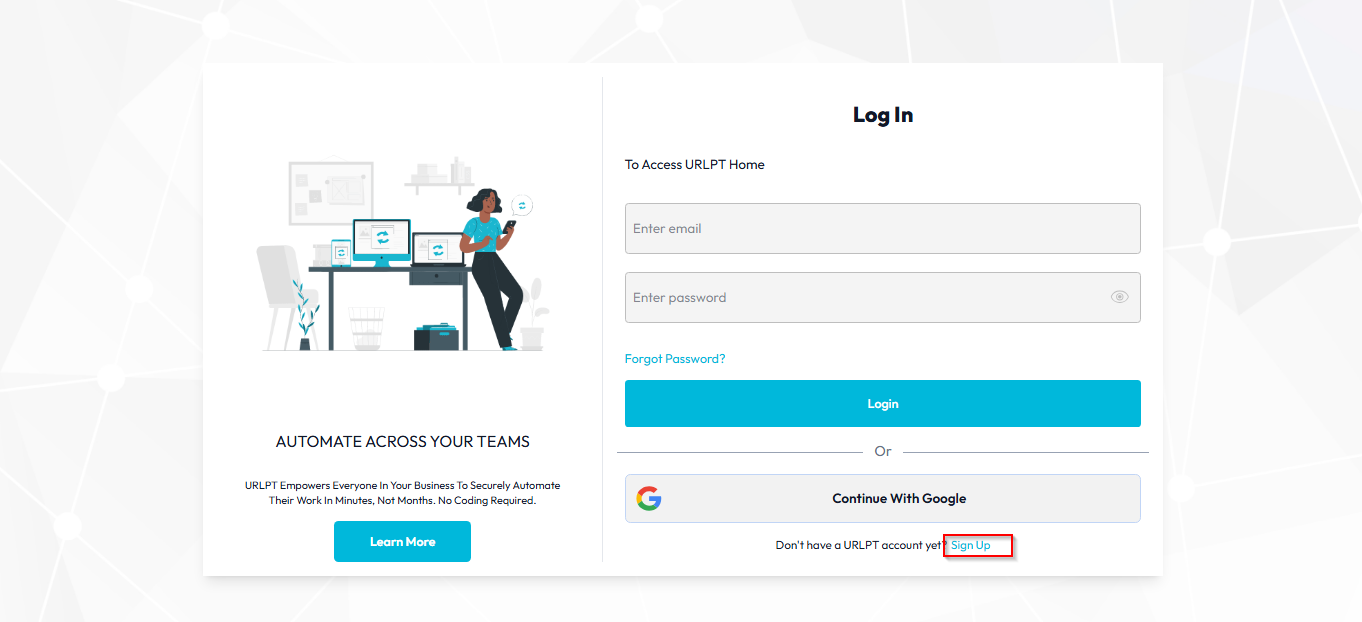
Step 1 Go to urlpt.technians.in
- Click on Sign up
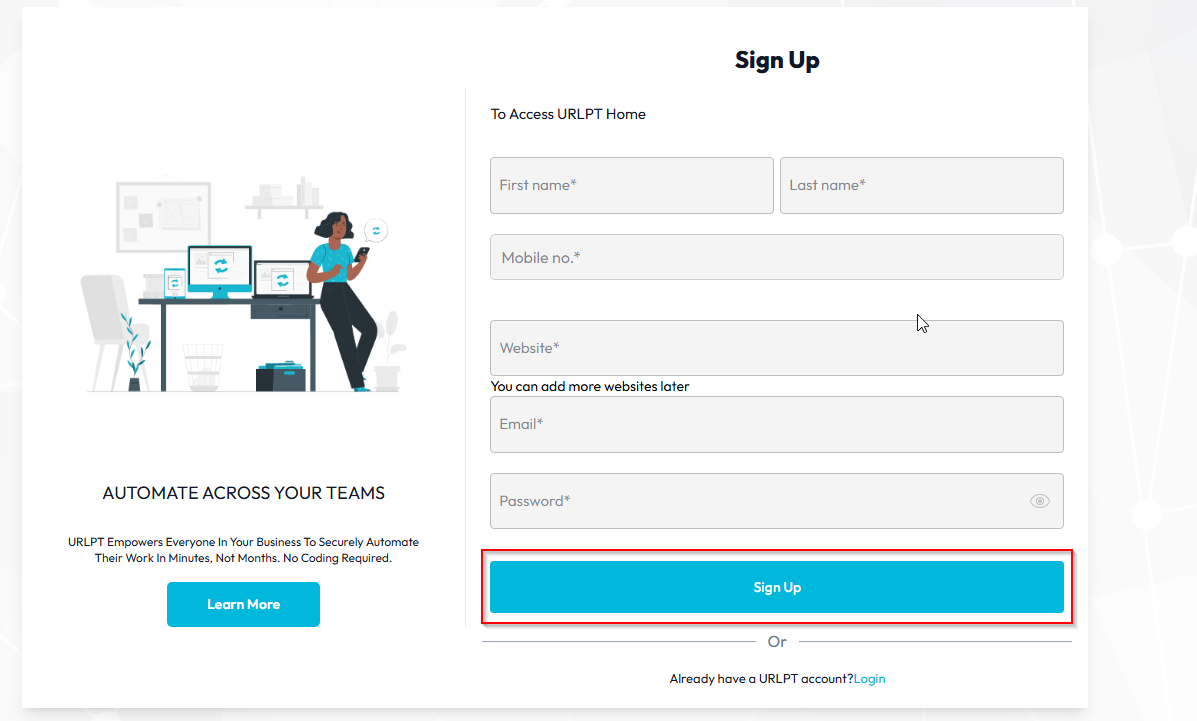
Step 2 Fill in the details and click on the Sign Up button.
Note: When you add a website during signup, it is automatically set as your primary website and marked as active.
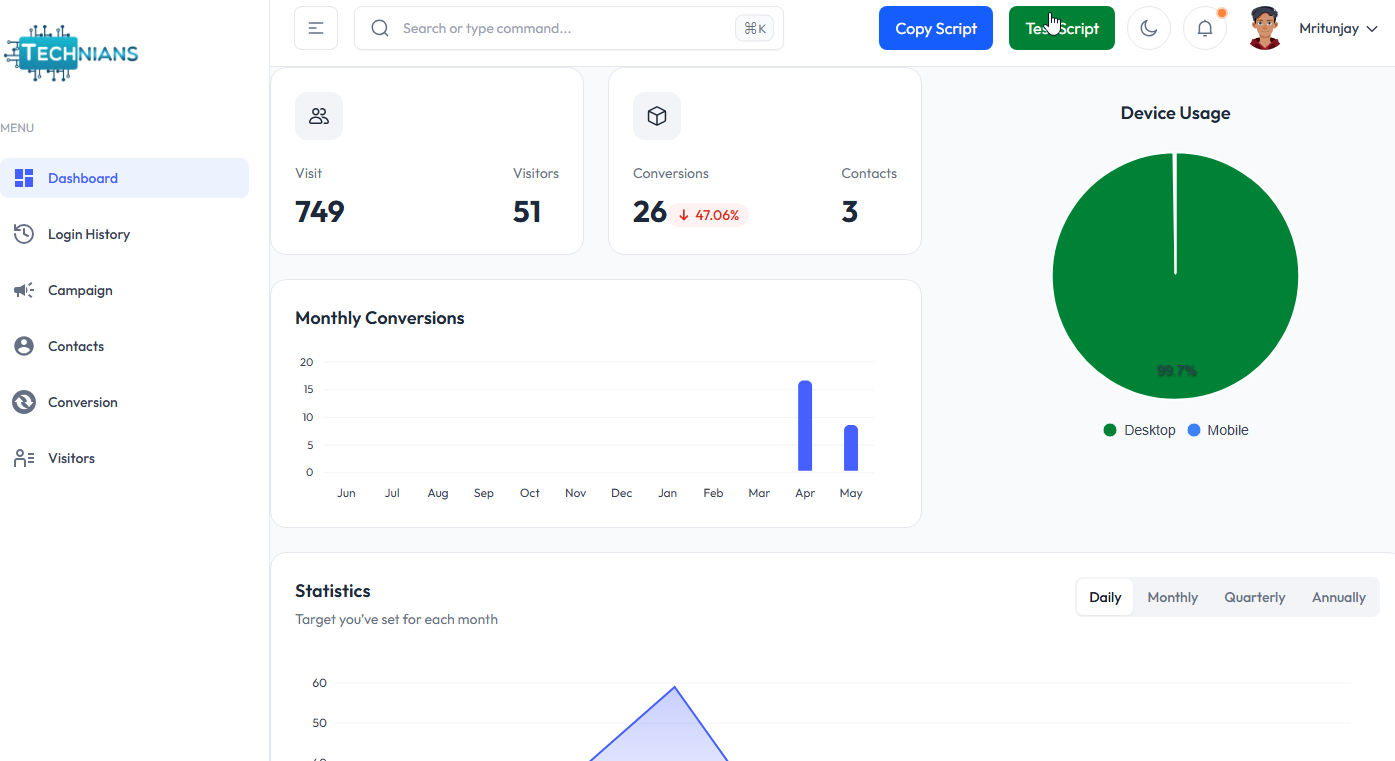
Step 3 This will take you to the dashboard page, which will look like the one shown below.
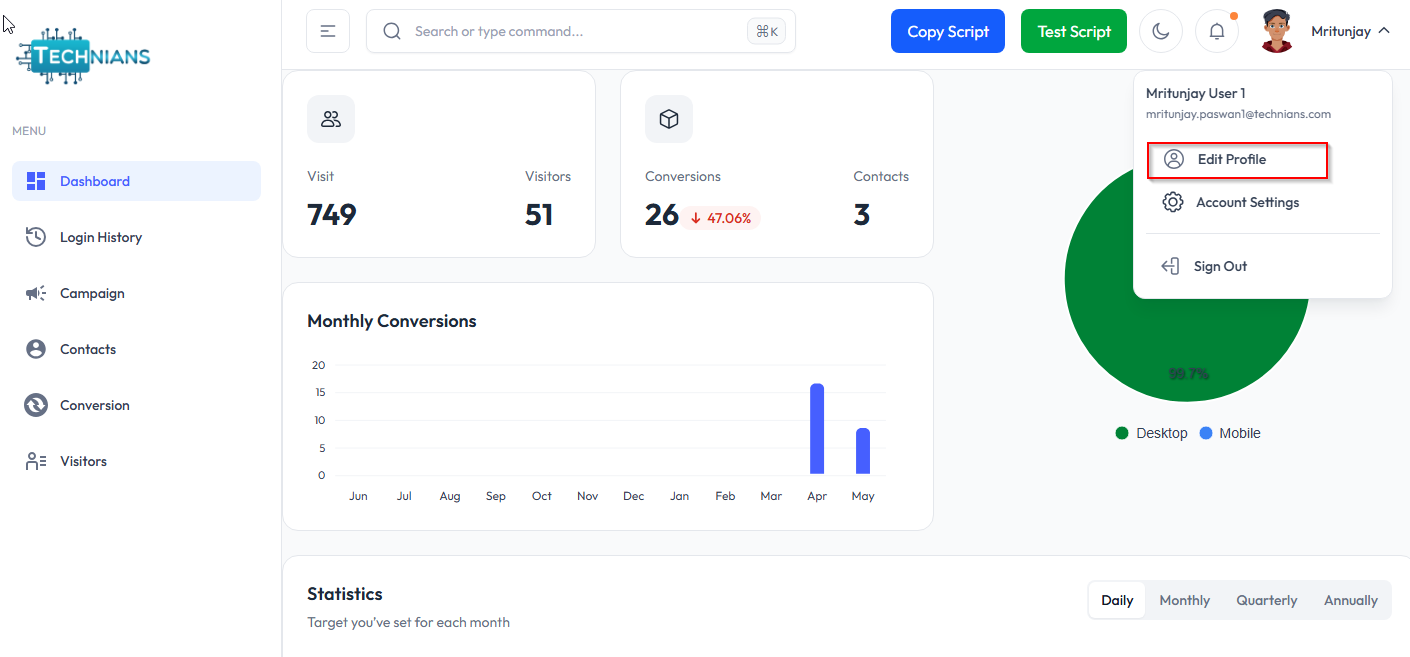
Step 4 To add a website, go to the Profile section and click as shown below.
Step 5 This will take you to the Profile page, where you can add a website.
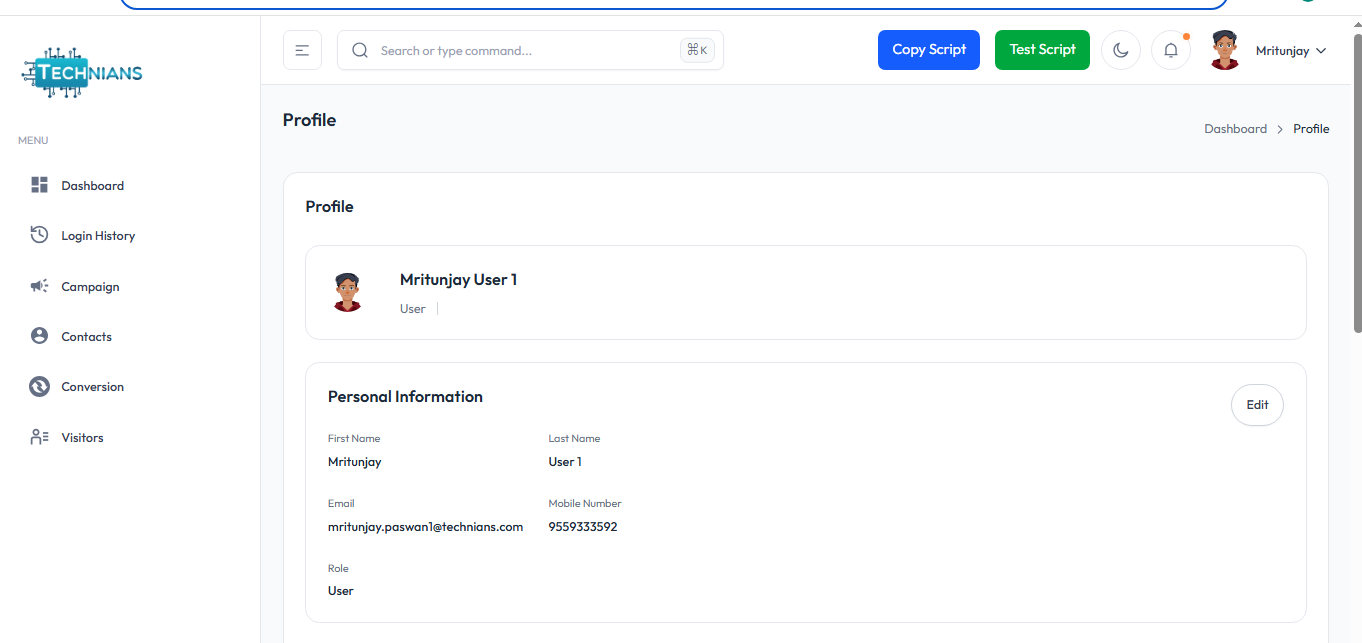
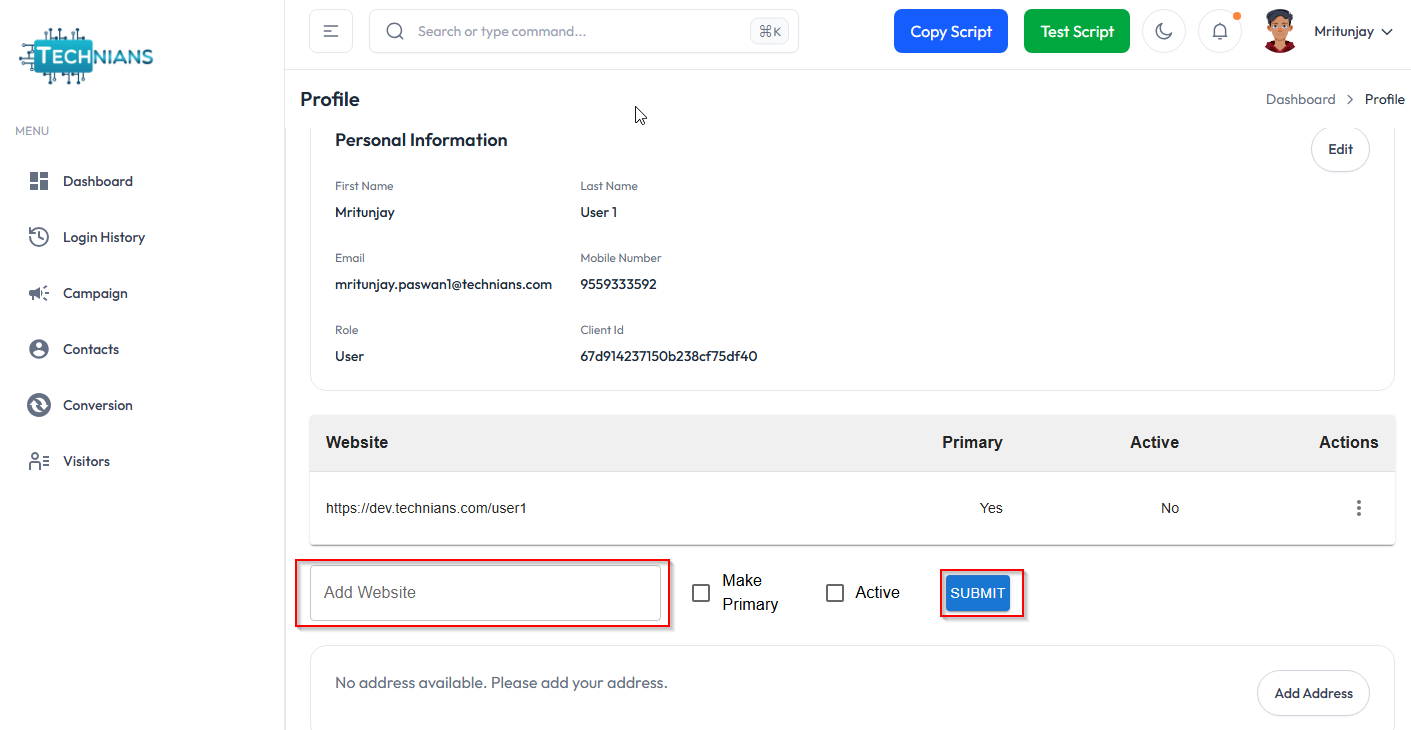
Step 6 Scroll down, and you will see your website list as shown below.
- Enter your website with the full URL and click the Submit button.
- Your website will be saved
- To deactivate your website, click on the Action button. You will see a menu with options to make it primary or activate/deactivate.
Note: If you have only one website, it is set as the default primary and will not appear in the action button. If you have more than one, it will be shown in the action button.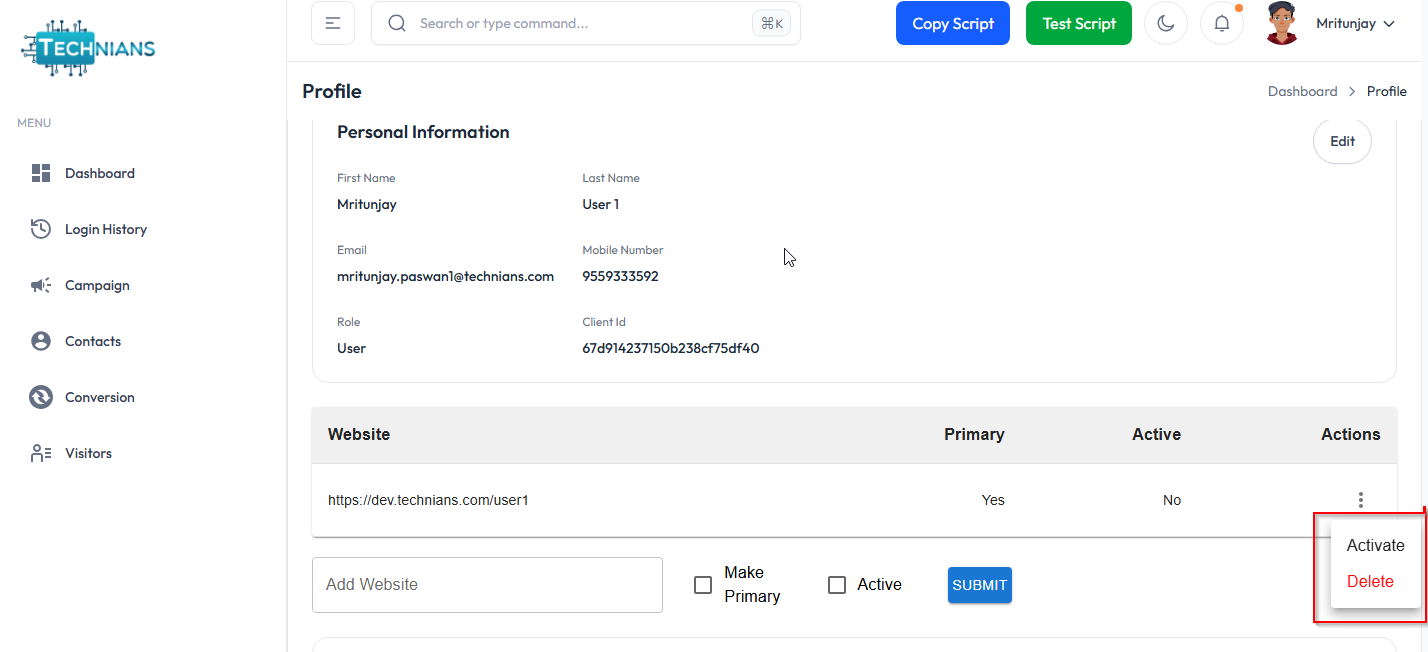
- Click the Activate button to activate your website.
- Click Delete to remove your website.
- To integrate this script, you need to add the main script to your existing website. Paste it just before the closing </head> tag on the page where you want it, as shown below.
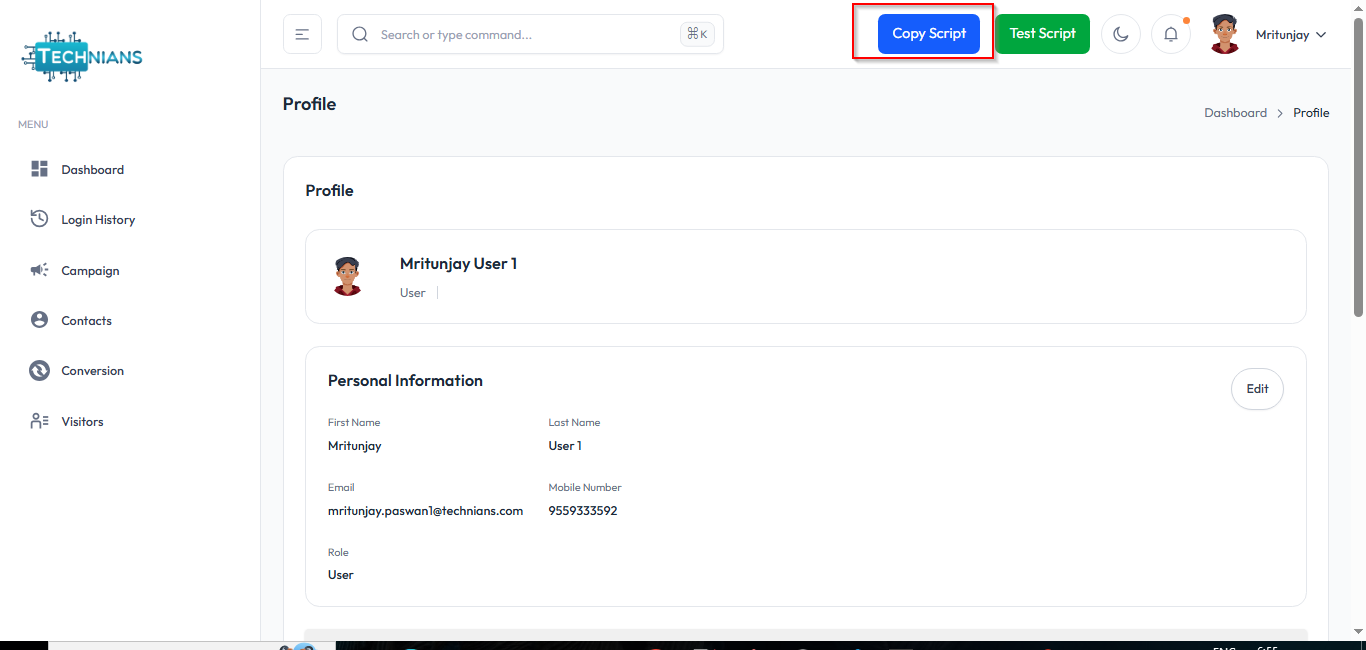
Step 7 Click on the highlighted button this will copy a script to your clipboard.
Step 8 Go to the page where you want to add tracking and events, and paste the script just before the closing </head> tag, as shown below.
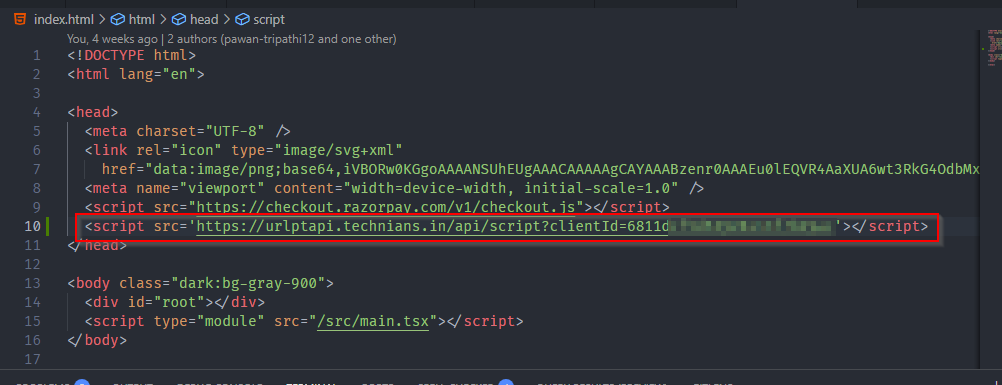
Step 9 Main Script
Script
<script src="https://urlptapi.technians.in/api/script?clientId=xxxxabcdedac"></script>
- This script works only on your active websites.
- It is the main script that manages all other scripts internally.
- It includes your unique ID, called the Client ID, which you can also find in the Profile section.
- This main script is responsible for tracking your visitor data. (If this script is missing, other scripts won’t work.)
- To test it, go to your Dashboard and click the Test Script button, as shown below
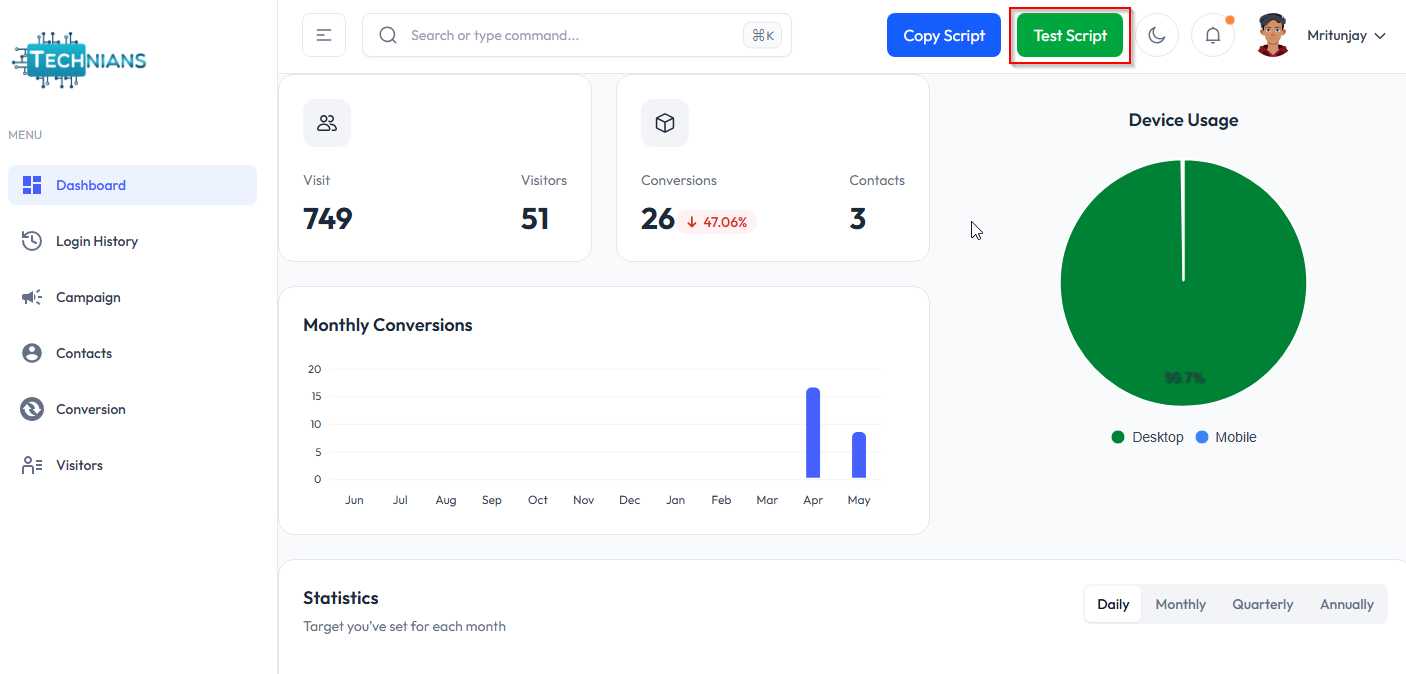
- This will take you to your primary site.
- Now go to the Dashboard and open the Visitors section. This will show you all the details about the visitors to your site, as shown below.
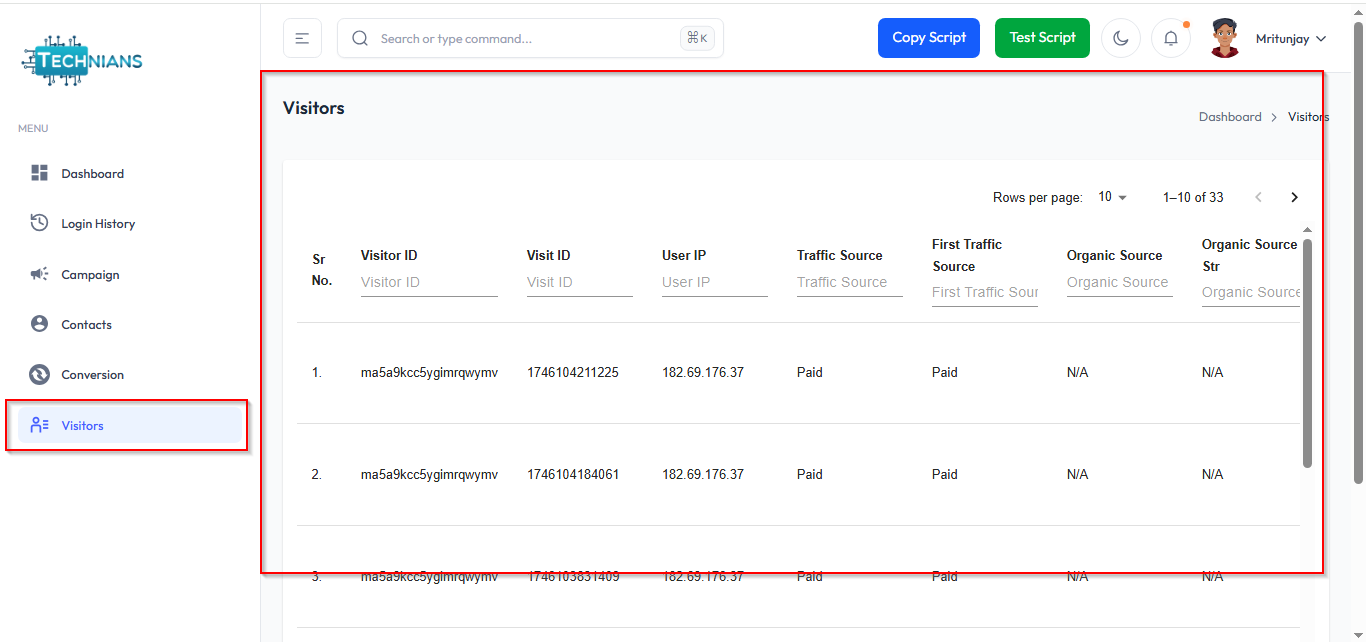
- The table above shows your visitor data, including UTM parameters and other information.
Step 10 Event Script
- This will be also a part of main script.
- If the main script is available then this will work only if you have designed campaigns.
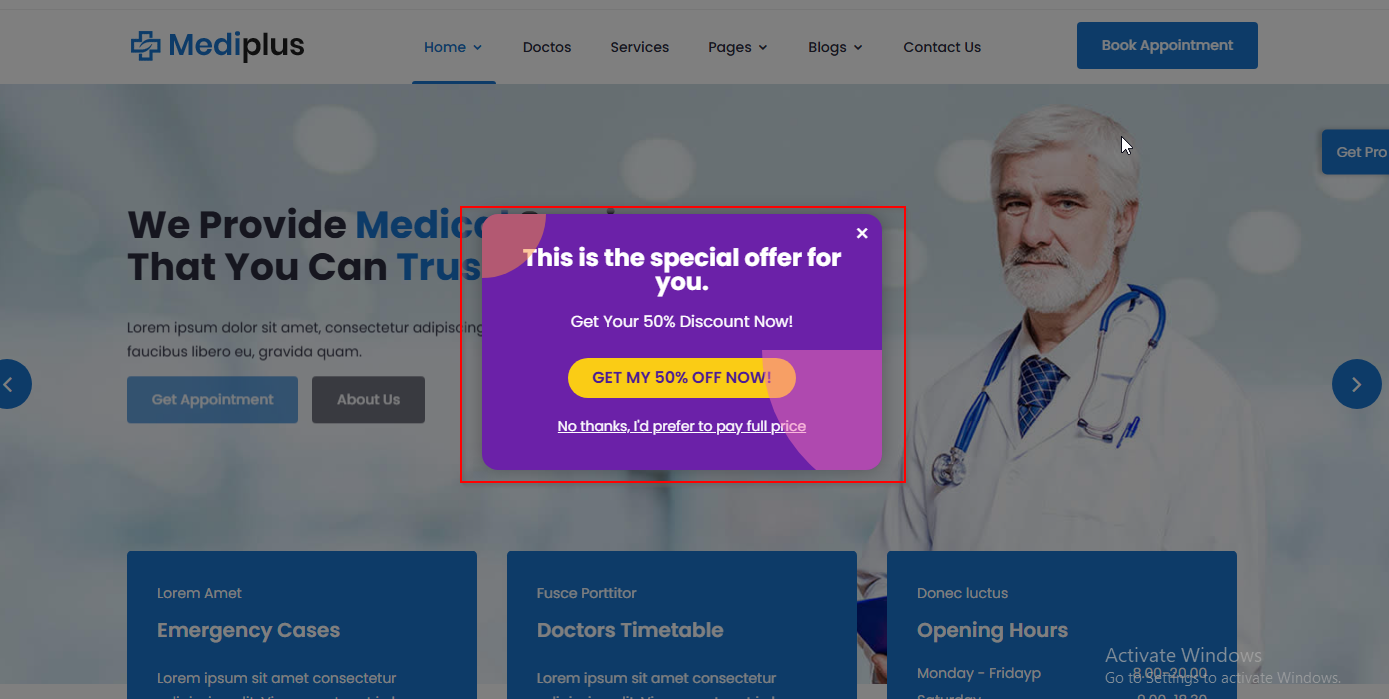
Go to urlpt.technians.in
Fill in the details and click on the Sign Up button.
This will take you to the dashboard page, which will look like the one shown below.
To add a website, go to the Profile section and click as shown below.
This will take you to the Profile page, where you can add a website.
Scroll down, and you will see your website list as shown below.
Click on the highlighted button this will copy a script to your clipboard.
Go to the page where you want to add tracking and events, and paste the script just before the closing </head> tag, as shown below.
Main Script
Event Script